Every BOM you've ever produced, every supplier catalog you've ever priced from, every spec section you've ever referenced — this is the institutional knowledge that makes your estimating team good. A RenderDraw knowledgebase makes that knowledge available to the AI on every takeoff.
A RenderDraw knowledgebase is a structured repository of documents, data, and examples that provide context to the AI during a takeoff workflow run. Unlike a general AI model's training data (which is fixed at training time), a knowledgebase is yours — it updates as you add to it and improves as you correct AI extractions.
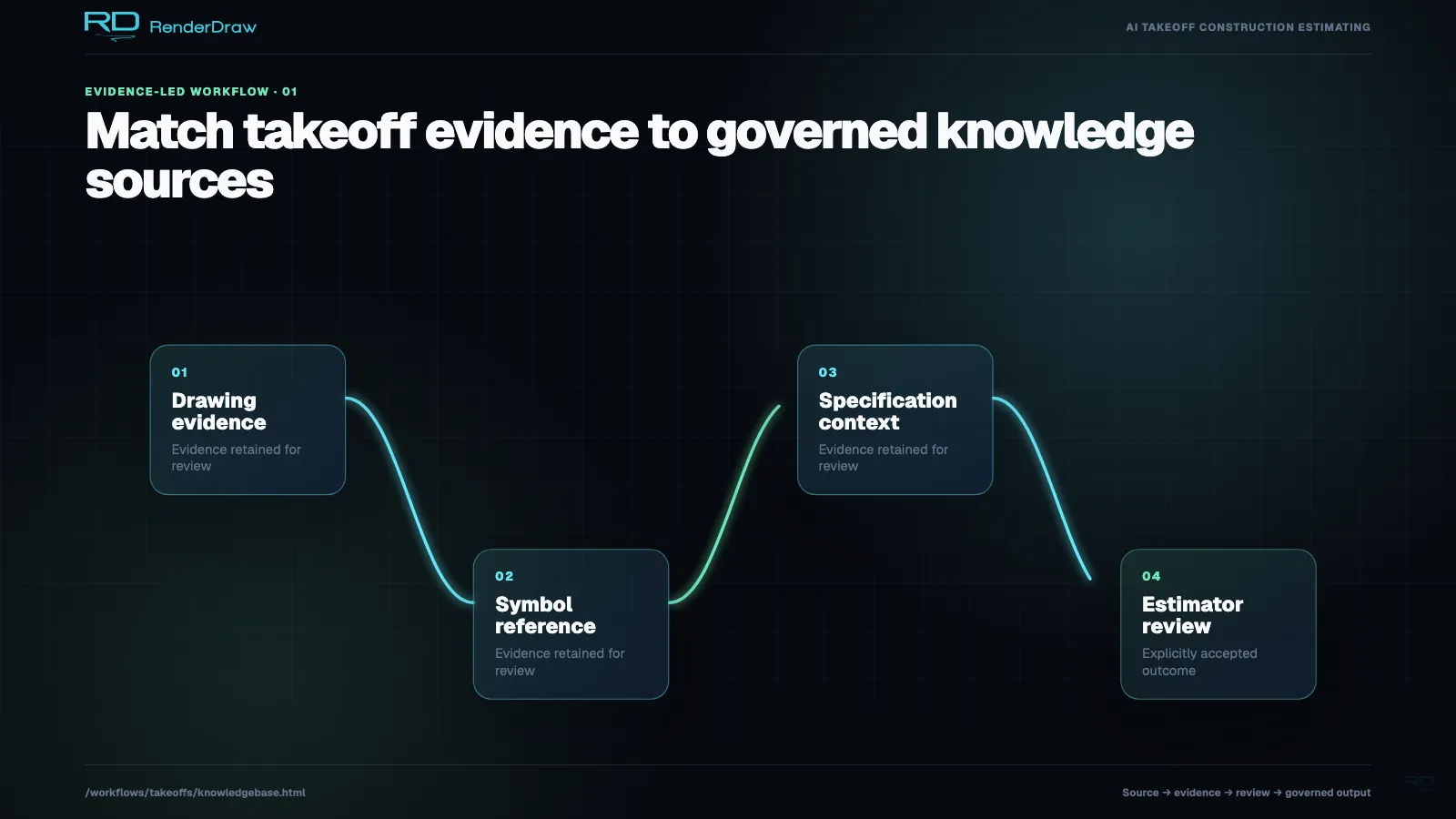
When the AI vision block processes a drawing, it queries the connected knowledgebase for relevant context: known symbols from this client's drawing standard, specification language for items it's detected, historical unit prices for the type of work it's quantifying, and examples of how past estimators classified similar items.
The result is an AI that behaves less like a generic model and more like a new employee who has read all of your company's past estimates and knows your preferred suppliers, your standard assemblies, and your typical project types — on their first day.
"Most AI tools give you generic intelligence. A knowledgebase gives you your intelligence — the decades of domain expertise that differentiates your team — running at AI speed."
The knowledgebase accepts any document or data source that contains construction estimating knowledge. Here is a prioritized list of what to load, in order of impact on takeoff accuracy.
Your past BOMs and quantity surveys are the most valuable knowledgebase input. They teach the AI how you classify items, what level of detail you track, and what typical quantities look like for your project types. Even five to ten past BOMs create a measurable improvement in extraction accuracy.
Formats accepted: Excel (.xlsx, .xls), CSV, PDF BOM exports, RenderDraw workbook exports.
CSI MasterFormat specification sections — Division 03 through Division 48 — define the material and installation requirements for every item in a project. Loading specification sections lets the AI extract material grades, standards compliance, and substitution acceptability alongside quantities.
Formats accepted: PDF (Word-generated or scanned), DOCX, plain text. Both project-specific specs and your master spec library are useful.
Your current supplier price lists are the foundation of the pricing lookup block. Upload price lists from your primary and secondary suppliers for each trade. The system handles both structured price books (part number, description, price) and unstructured catalog PDFs.
Formats accepted: Excel, CSV, PDF catalog pages, API connections to distributor pricing systems.
Your crew labor rates and productivity factors (e.g., "electrician installs 15 LF of 1-inch EMT per hour") let the system compute labor costs per BOM line item. These can come from industry references (NECA, RS Means) or your own historical data.
Formats accepted: Excel tables, CSV, or a structured form in the knowledgebase builder.
Construction firms have idiosyncratic drawing conventions. If you regularly work with specific GCs or architects, upload annotated examples of their drawing symbols. The AI learns to recognize these in future drawing submissions from that client.
Formats accepted: PDF drawing sheets with annotated examples, image files with labeled symbols, DWG/DXF symbol blocks.
Pre-built assemblies — a complete electrical panel installation, a standard plumbing rough-in, a structural steel base plate — each with known material and labor content. Assembly-based matching is faster and more consistent than line-by-line pricing for repetitive work.
Formats accepted: Excel assembly tables, RenderDraw assembly JSON, imported from past workbooks.
Navigate to Knowledgebases → New Knowledgebase. Select Takeoff as the purpose. Give it a descriptive name — either a project name (for project-specific knowledgebases) or a trade name (for reusable trade knowledgebases). You can connect multiple knowledgebases to a single workflow.
Drag and drop your past estimate files into the document ingestion panel. RenderDraw auto-detects Excel BOMs, CSV quantity surveys, and PDF takeoff reports. The ingestion pipeline extracts item descriptions, quantities, units, and prices into the structured knowledgebase format.
Review the extracted items in the knowledgebase browser. Items that were ambiguously extracted (e.g., non-standard description formats) are highlighted for quick review. Corrections here immediately improve matching accuracy for future takeoffs.
Upload specification PDFs or DOCX files. The system reads each specification section and builds a structured index: section number, title, applicable items, material standards referenced, and substitution language. During takeoff, this index is queried to provide specification context alongside quantity extraction.
If you have a master specification library (a standard spec template you adapt for each project), load it as a base knowledgebase. Project-specific specs can then be loaded as addenda that overlay the master without replacing it.
Upload Excel or CSV price files from your suppliers. The importer expects at minimum: an item identifier (part number or description), a unit of measure, and a unit price. Optional fields — manufacturer, lead time, minimum order, notes — are preserved and available in the pricing lookup block.
Price lists can be marked with an effective date. The system uses the most recent effective version for each lookup. Upload updated price lists each time your supplier provides them — the knowledgebase preserves the history so you can retrospectively explain a price used in a past estimate.
Use the built-in labor rate editor to enter your crew rates by trade (electrician, pipefitter, ironworker, etc.) and your productivity factors for each item type. If you have these in an existing spreadsheet, use the CSV import rather than entering them manually.
Productivity factors can be defined at varying granularity — from broad (hours per ton of structural steel) to detailed (hours per connection for each fitting type). Use the level of detail you actually track; the system works with whatever resolution you provide.
If you work repeatedly with a particular GC or design firm, upload two or three sheets from a past project alongside a markup identifying the symbols used. The knowledgebase builder extracts the marked symbols and stores them as labeled examples for the AI vision block.
This step alone can raise confidence scores for client-specific drawings from 65-70% to 85-90% — cutting review time by more than half for that client's projects.
In your takeoff workflow, open the AI vision block configuration and select this knowledgebase under Knowledge Sources. You can also connect it to the price lookup block under Primary Price Source. Save the workflow — the knowledgebase is live on the next run.
The knowledgebase is not loaded wholesale into every AI prompt — that would be slow and expensive. Instead, the system performs targeted retrieval: fetching only the most relevant knowledge for each sheet type and each detected item type.
When processing an electrical plan, the system retrieves electrical symbol examples, electrical specification sections, and past electrical BOMs from the knowledgebase — not the full knowledgebase. This keeps context windows focused and extraction prompts sharp.
When the AI detects a specific component — say, a 2-inch gate valve on a piping isometric — the knowledgebase is queried for: valve specification requirements, historical prices for similar valves, and how past estimators classified this valve type in the BOM taxonomy.
When a detected item matches a knowledgebase example with high similarity, the confidence score is boosted upward. When the item has no knowledgebase match, it receives a lower score and is routed to human review. Your knowledgebase quality directly drives your review throughput.
The feedback loop compounds. Every time a human reviewer approves, corrects, or rejects an AI extraction, that signal is written back to the knowledgebase as a confirmed or corrected example. Over 20-50 takeoff runs, the review rate for a consistently-used workflow typically drops from 15-20% of items needing review to 3-5%. The system gets better specifically in the areas that matter for your work.
Drag-and-drop PDFs, Excel files, CSVs, Word documents, and CAD files directly in the knowledgebase builder. Batch uploads accepted. The ingestion pipeline processes files asynchronously and notifies you when complete.
Paste a URL to a publicly accessible supplier catalog, specification document, or data feed. The system fetches and indexes the content. Useful for manufacturer product data sheets hosted on supplier websites.
Connect a live pricing API (distributor pricing systems, your ERP price book) as a dynamic knowledgebase source. Items are looked up at runtime rather than stored as a static catalog — ensuring the AI always uses current pricing.
Upload Excel BOMs with a column-mapping step. Map your columns (Description, Qty, UOM, Unit Price, etc.) to the knowledgebase schema using the visual mapper. No reformatting of your existing files required.
Human review corrections from past workflow runs are automatically fed back into the knowledgebase. This is the most valuable ingestion channel over time — it captures domain knowledge in the act of doing the work, without any manual curation overhead.
Team members can add freeform notes to the knowledgebase via the browser: "Client always uses 304 stainless for food-grade piping," "This GC's drawings consistently omit expansion loops — always add 8%." These notes are surfaced as context during relevant takeoffs.
Every estimate your team has ever done is training data waiting to be used. Start building your knowledgebase today — even a handful of past BOMs makes a measurable difference on your first automated takeoff.