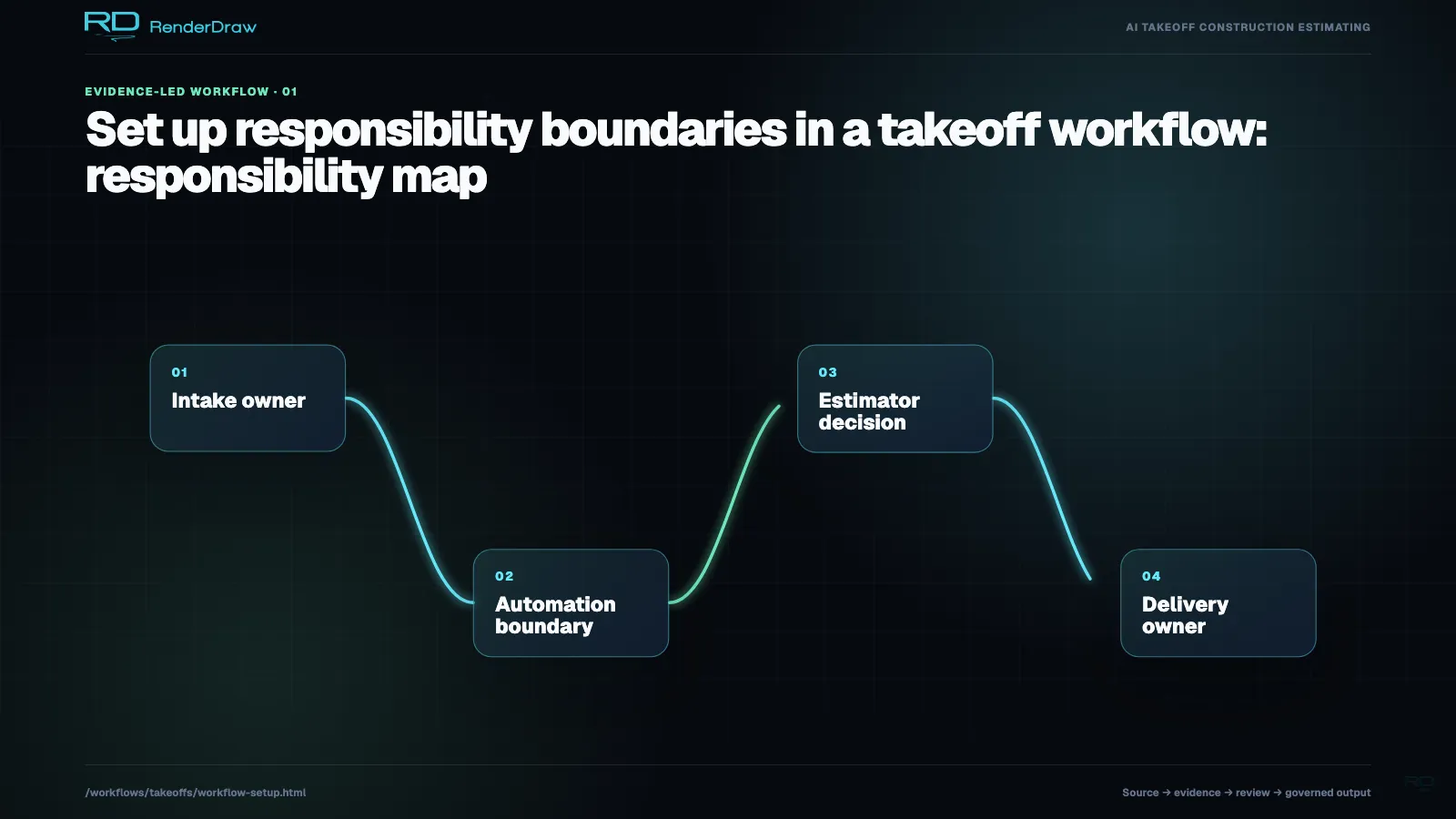
This guide walks through every block in a complete takeoff workflow — from the drawing submission trigger through AI extraction, pricing lookup, workbook population, and proposal export. Each step includes the configuration options that matter and sensible defaults to start with.
You can start without the recommended items. The workflow will run with RenderDraw's built-in CSI taxonomy, sample pricing data, and a standard workbook template. You can swap in your own data as you go without reconfiguring the workflow structure.
From the Workflows index (/workflows), click New Workflow and select the Takeoff template. This pre-populates the canvas with the standard block sequence — you'll configure each block in the following steps rather than adding them from scratch.
Give the workflow a name that identifies the trade or project type (e.g., "Electrical Takeoff — Commercial" or "Full MEP Takeoff — Industrial"). Workflow names appear in your run history, so specific names make audit much easier.
The trigger block defines how drawings enter the workflow. RenderDraw supports three trigger types for takeoffs:
POST /api/workflows/{workflowId}/runs call with the drawing file(s) in the request body. Use this to trigger takeoffs from your CRM, ERP, or project management system.For your first workflow, Email Submission is the fastest to test — you can send your test drawing set to yourself and watch the workflow start automatically.
The AI vision block is the core of the takeoff workflow. Click the block to open its configuration panel. Key settings:
The knowledgebase connection tells the AI vision block where to find your project-specific context — symbol examples, past BOMs, specification templates. In the AI vision block configuration, click Knowledge Source and select from your available knowledgebases.
If you have not yet created a knowledgebase, select RenderDraw Default to use the platform's built-in construction knowledge base. This covers standard symbol libraries for all major disciplines and provides a working baseline while you build your custom knowledgebase.
You can connect multiple knowledgebases to a single workflow — for example, a general construction knowledgebase plus a project-specific one containing the client's symbol library and this project's specification sections. The AI merges context from all connected sources.
The price lookup block takes the classified quantity list from the AI vision block and matches each item against your pricing data sources. Configuration options:
The workbook block writes the priced BOM into your standard bid workbook template. Upload your Excel template (any standard estimate workbook format works) and map BOM fields to workbook columns in the visual column-mapper. Typical mappings:
The populated workbook is attached to the workflow run record and can be emailed to your team, saved to a project folder, or passed to the proposal block.
The final block determines what happens with the completed workbook. Options:
RenderDraw workflows are stored as JSON and can be exported, version-controlled, and imported across accounts. Here is an example configuration for a complete electrical takeoff workflow:
{
"name": "Electrical Takeoff — Commercial",
"trigger": {
"type": "email",
"address": "takeoffs-electrical@your-tenant.rd.io",
"accepted_types": ["pdf", "dwg", "dxf"]
},
"blocks": [
{
"type": "ai_vision_takeoff",
"drawing_type": "electrical",
"provider": "gpt4o",
"confidence_threshold": 75,
"scale_units": "imperial",
"multi_pass": true,
"knowledge_sources": ["kb_default_electrical", "kb_acme_client_symbols"]
},
{
"type": "price_lookup",
"primary_source": "catalog_electrical_2025",
"fallback_source": "historical_avg",
"labor_rate_table": "rates_electrician_2025",
"unmatched_action": "flag_for_review"
},
{
"type": "workbook_populate",
"template": "template_electrical_bid_v3.xlsx",
"column_map": {
"csi_division": "A",
"description": "B",
"qty": "C",
"uom": "D",
"unit_price": "E",
"total_material": "F",
"hours": "G",
"total_labor": "H"
}
},
{
"type": "export",
"email": ["estimating@yourcompany.com"],
"storage": { "provider": "sharepoint", "folder": "/Estimating/Takeoffs/{run_date}" },
"notify_webhook": "https://yourcrm.com/hooks/rd-takeoff-complete"
}
]
}
This JSON can be pasted into Settings → Import Workflow in the platform to instantly create this workflow configuration on your account. All field IDs reference resources (catalogs, templates, knowledgebases) by their platform ID — you'll need to update those IDs to match your own resources.
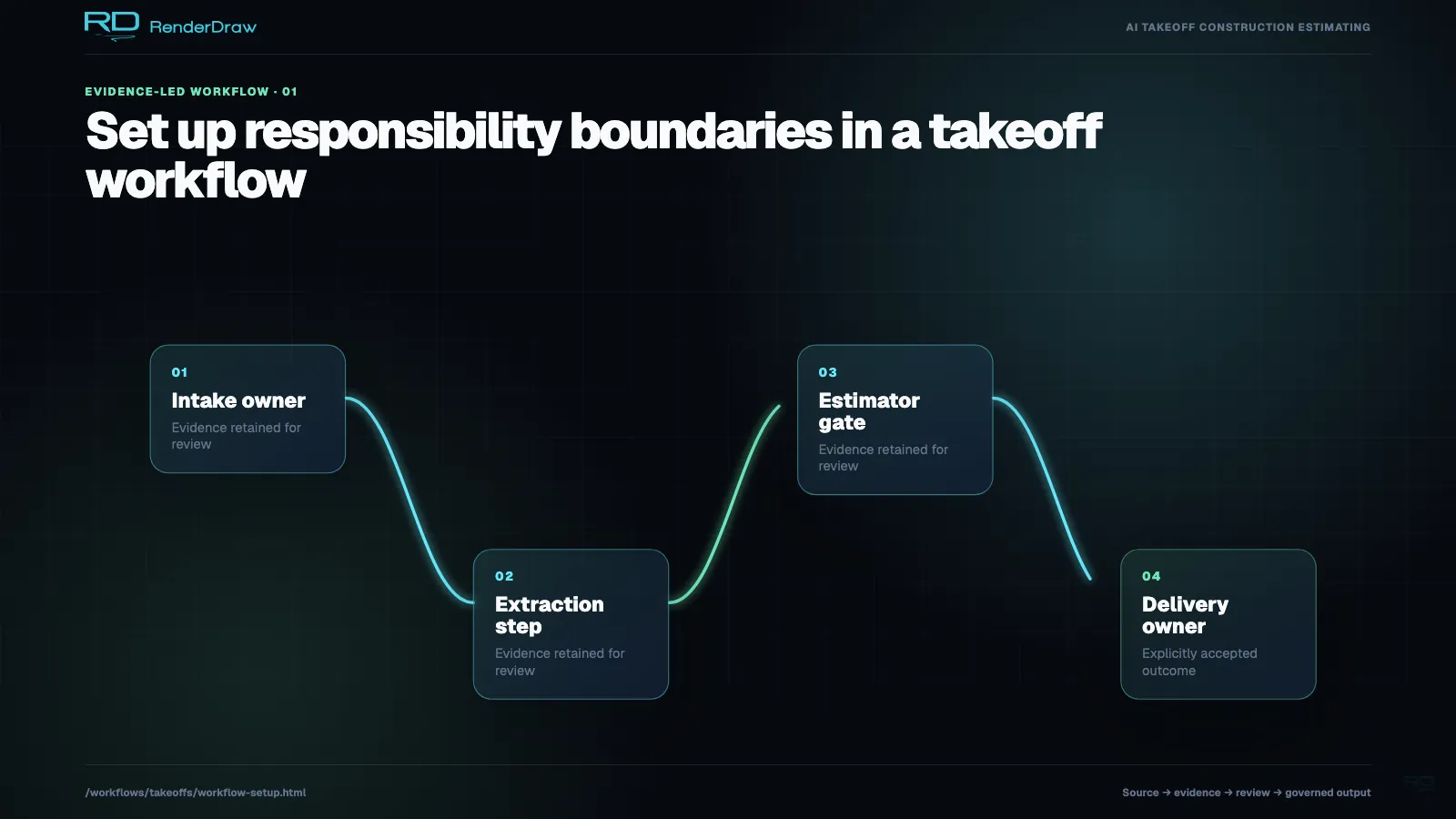
Your first few workflow runs will reveal which items consistently need human review — and that tells you exactly where to invest knowledgebase improvement effort for maximum throughput gain.
After each run, open the confidence report and look for item types that are consistently flagged at 60-74% confidence. These are candidates for knowledgebase enrichment — add examples and they'll clear the 75% threshold on the next run.
If your reviewers are approving 95%+ of flagged items unchanged, your threshold is too low — raise it to reduce unnecessary review time. If they're finding real errors in flagged items at high rates, the threshold may need to come down or the knowledgebase needs enrichment.
Don't try to load your entire pricing history before starting. Run the first 10 takeoffs with the default knowledgebase, then use the knowledgebase builder to ingest the corrections made during those reviews. Each batch of corrections compounds into measurably higher accuracy.
Create your free account, follow the steps above, and have your first automated takeoff running before end of day.