Works with drawings from Autodesk, Bluebeam, SolidWorks, Revit, and plain PDFs. If your GC or client can email it to you, RenderDraw can read it. No plug-in installation, no special export settings, no account linkage required.

How It Works

Step-by-Step: From Drawing Submission to BOM

The drawing-to-BOM pipeline runs automatically once configured. Here is every step the system executes when a new drawing set arrives.

  1. Drawing Ingestion. Files are received via email attachment, portal drag-and-drop, API POST, or connected cloud storage (SharePoint, Google Drive, Procore). The system accepts mixed sets — PDFs alongside DWGs alongside Revit exports — and normalizes them into a processing queue without requiring a consistent format from the submitting party.
  2. Format Detection and Parsing. Each file is analyzed to determine its format and structure. Native CAD files (DWG, DXF, RVT, IFC, STEP, IGES, SolidWorks) are parsed with dedicated format readers that extract vector geometry directly — providing higher precision than raster image analysis for these types. PDFs are analyzed to determine whether they are vector (from a CAD export) or raster (scanned).
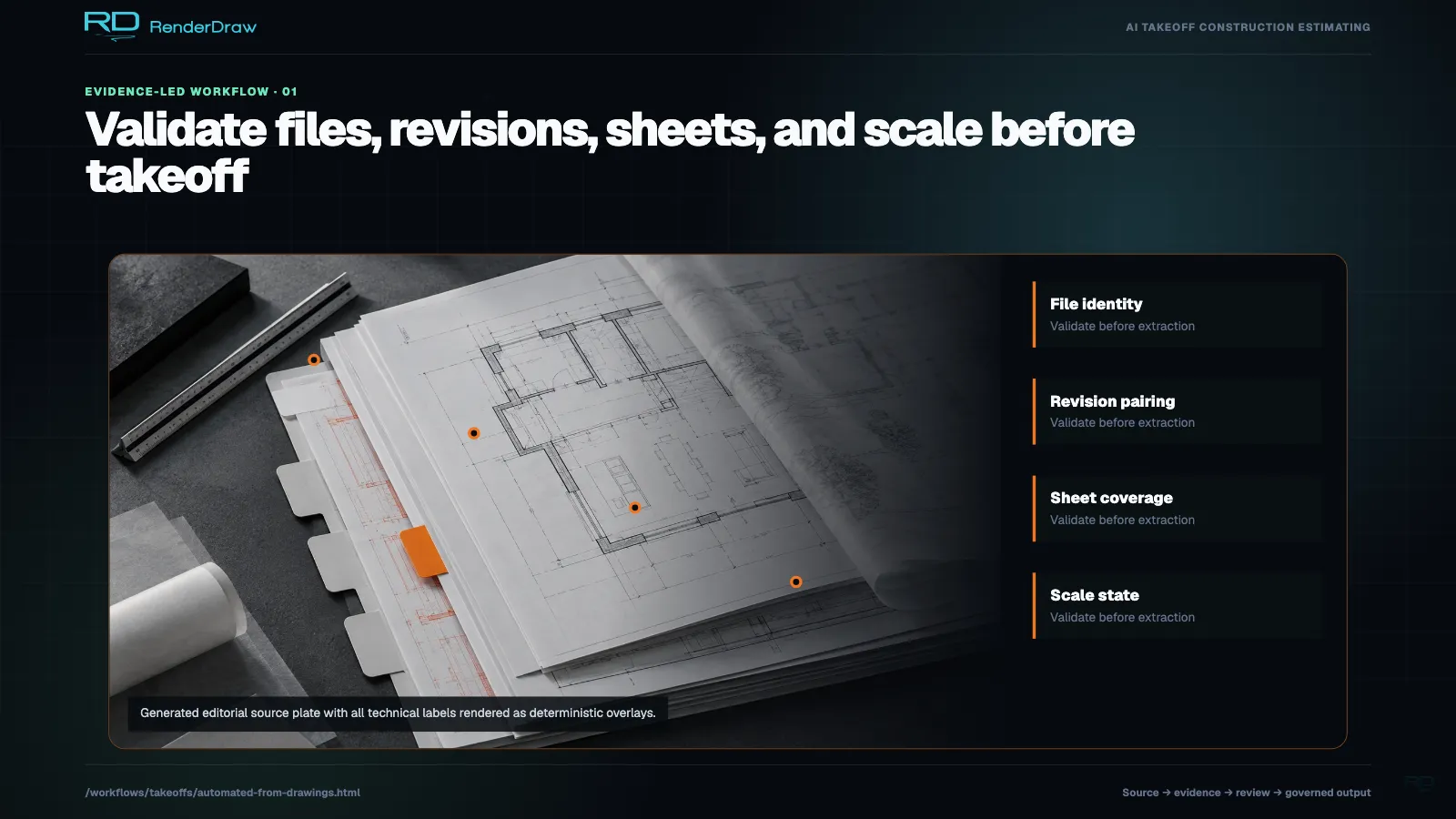
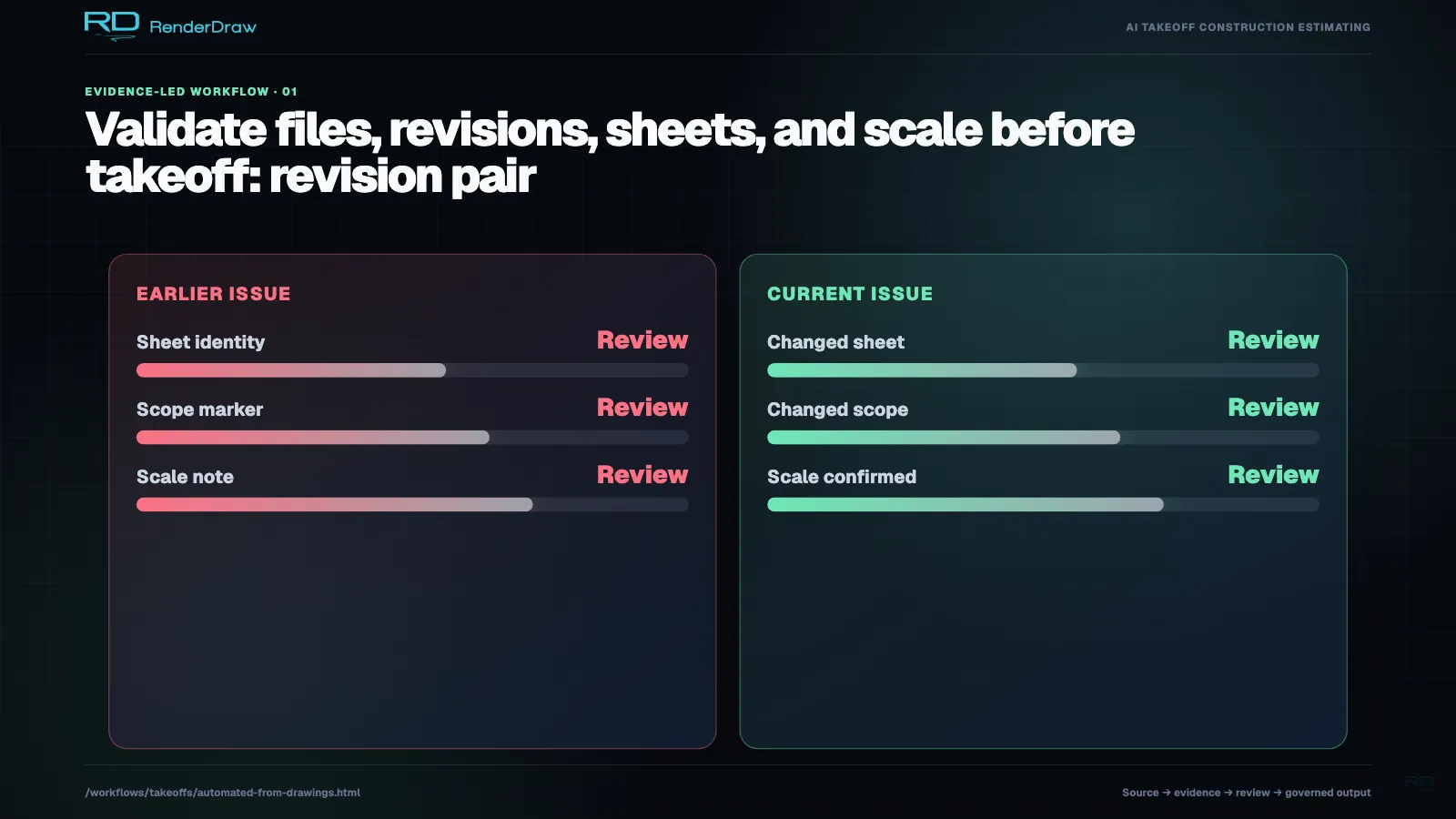
  3. Sheet Organization and Indexing. Multi-sheet drawing sets are organized into a sheet index. The system reads title blocks to extract sheet number, title, scale, revision date, and discipline. Superseded sheets (same number, older revision date) are automatically flagged and excluded from extraction unless specifically requested.
  4. Scale Calibration. Each sheet's drawing scale is established from the title block annotation and, where available, the scale bar graphic. For scanned drawings where scale bars may be distorted, the system uses multiple reference points to establish a calibrated scale. Scale calibration accuracy is logged per sheet and influences the confidence score for all linear and area quantities on that sheet.
  5. AI Vision Extraction. The multimodal AI model processes each sheet to identify and count extractable items: symbols, component instances, linear runs, area fills, annotation callouts, and equipment tags. The AI draws on your configured knowledgebase to recognize project-specific symbols that may differ from standard drafting conventions.
  6. Dimension and Quantity Computation. Raw detections are converted to quantities in your preferred units. Linear runs are summed. Areas are computed from boundary detection. Point symbols are counted. Annotations are parsed to extract explicitly stated quantities (e.g., "3-#4 rebar at 12" O.C.").
  7. Specification Cross-Reference. Where specification sections are included in the submission (or previously loaded into the knowledgebase), each extracted item is matched to its governing specification section. Material grades, standards, and substitution clauses are read and appended to the BOM line item for use in pricing.
  8. Confidence Scoring and Flagging. Each BOM line item receives a confidence score based on detection clarity, scale calibration quality, symbol recognition confidence, and specification match strength. Items below your configured threshold are flagged for human review. A review interface shows the source drawing coordinates for every flagged item.
  9. Pricing Lookup and BOM Assembly. Extracted quantities are matched against your knowledgebase pricing data — supplier catalogs, labor rate tables, historical unit prices — and the BOM is assembled with extended costs. The final structured BOM is written to your workbook template and/or passed downstream to the proposal generation block.
File Formats

Every Format Your Clients Send You

General contractors, architects, and owners submit drawings in whatever format they work in. RenderDraw handles them all without conversion.

📄 Document Formats

  • PDF (vector and raster)
  • Bluebeam PDF with markups
  • Multi-sheet PDF packages
  • Scanned drawings (TIF, PNG, JPG)
  • XPS / OpenXPS documents

✍ 2D CAD Formats

  • AutoCAD DWG (all versions)
  • DXF (ASCII and binary)
  • MicroStation DGN
  • HPGL / PLT
  • SVG vector drawings

🏭 3D / BIM Formats

  • Revit RVT (via IFC export)
  • IFC 2x3 and IFC 4
  • SolidWorks SLDASM / SLDPRT
  • STEP (AP203 / AP214)
  • IGES, Parasolid, ACIS
Detection Capabilities

What the AI Detects on Your Drawings

The AI is not a generic image recognizer — it understands the semantic meaning of construction drawing elements and can distinguish between, say, a structural column and an architectural column, or a supply air diffuser and a return air grille.

Architectural & Structural

  • Wall runs, lengths, and heights (interior, exterior, CMU, framing)
  • Door and window openings by type and size
  • Structural steel sections (W, HSS, angle, plate) and lengths
  • Concrete elements: columns, beams, slabs, footings with volume
  • Rebar schedules: bar size, spacing, total linear feet
  • Floor area, ceiling area, roof area by assembly type
  • Stair flights, risers, treads, and guardrail linear feet

MEP Systems

  • Conduit runs (by type and trade size) and fittings
  • Panel schedules: circuit counts, breaker sizes, load totals
  • Pipe runs (by material and nominal diameter) and fittings
  • Ductwork area (by gauge and liner type) and fittings count
  • Equipment symbols: AHUs, pumps, fans, fixtures, panels
  • Valve and instrument counts by tag type
  • Light fixture counts by fixture type and mounting

Custom symbol training. Every construction firm uses slightly different drawing conventions and symbol libraries. Upload examples of your clients' symbols to the knowledgebase and the AI learns to recognize them within one to two sample projects. No code or model fine-tuning required.

Quality Control

Confidence Scoring: Trust but Verify

Every quantity extracted from a drawing carries a confidence score from 0 to 100. This score reflects the AI's certainty about the extraction, based on symbol clarity, annotation legibility, scale calibration quality, and knowledgebase match strength.

You set the confidence threshold for your workflow. Items above the threshold pass directly to the BOM. Items below the threshold are routed to a human review queue, where the reviewer sees the source drawing with the extraction highlighted — making it fast to confirm, correct, or reject.

📈 High Confidence (85+)

Item recognized from a clear, well-annotated drawing with a verified scale. Passes automatically. Typical for standard symbols on clean CAD-generated PDFs.

⚠ Medium Confidence (60–84)

Item recognized but with some ambiguity — partial annotation, cluttered area, or symbol not yet in the knowledgebase. Flagged for fast human confirmation.

❓ Low Confidence (<60)

Item detected but identification is uncertain. Requires human determination. Common on scanned drawings with heavy line work or non-standard symbol libraries.

📚 Knowledgebase Boosting

When a human reviewer corrects a medium or low confidence item, the correction is fed back to the knowledgebase. Future drawings with similar elements receive higher confidence scores automatically.

Review & Correction

The Human Review Interface

The review interface is designed for speed. Your estimator sees only the flagged items — not the full BOM. For each flagged item, they see the source drawing sheet with the AI's detection highlighted, the extracted quantity, and the confidence score.

With a single click they can: approve the extraction as-is, edit the quantity, reclassify the item to a different CSI division, or reject the detection entirely. Each action takes two to five seconds. A 200-item BOM with 20 flagged items can typically be reviewed in under 15 minutes.

Every correction improves future accuracy. Human corrections are not discarded after review — they are written back to the knowledgebase as confirmed examples. As you review more takeoffs, the percentage of items requiring human review decreases, and your overall throughput continues to improve.

Export Options

Getting Results Out

The final BOM can be exported in multiple formats depending on what comes next in your workflow — whether that's a proposal, a purchase order, a bid template, or a CPQ system.

📊

Excel / CSV

Export to your standard bid workbook template. Quantities, units, unit prices, and extended costs mapped to your column layout. Pivot-table ready.

📄

PDF Summary

Formatted BOM PDF with confidence indicators, source references, and your company branding — ready to attach to a bid submission or internal review package.

API / Webhook

Structured JSON BOM delivered to your ERP, CPQ, or procurement system via webhook or REST API. Fully documented schema with line-item source references.

📋

Proposal Block

BOM data flows directly into the RFP / proposal generation workflow — quantities and prices pre-populated into your response template without any copy-paste.

Related Pages

Upload a Drawing.
See What Comes Out.

Start a free trial and run a real takeoff on one of your own drawing sets. No sales call required.