
Takeoff guide

Electrical quantity takeoff in PlanSwift, done cleanly.

PlanSwift is a general on-screen takeoff and estimating tool from ConstructConnect that many contractors use for electrical counts and runs. This guide covers a clean method (scale, counts, segments, assemblies and export), what its AI tools now do, and where review time still goes.

Send one plan set. See what the AI extracts and what it flags for review. No obligation.

  • Counts and segments
  • Assemblies
  • Export and review
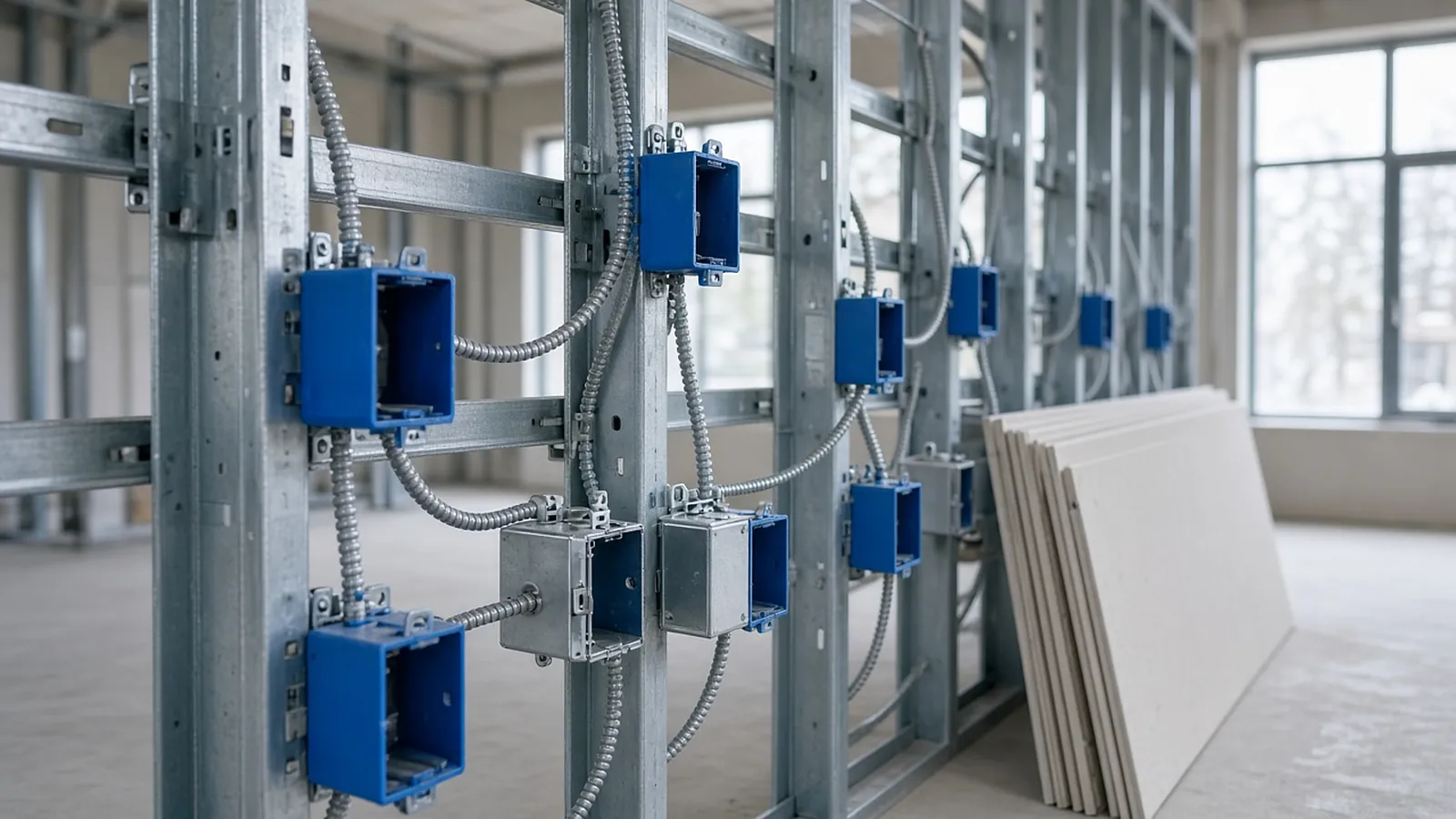
Electrical rough-in with device boxes and metal-clad cable on metal studs in a commercial interior
PlanSwift is a ConstructConnect product. RenderDraw is not affiliated with ConstructConnect. Plan and pricing details are from PlanSwift's public pages as of November 2026; confirm before buying.

What PlanSwift offers in 2026

PlanListed priceNotes
Free trial$0 for 14 daysFull Core features, no card required
Essential$2,000 per year, 1 seatTakeoff and estimating, pre-built assemblies, Auto Count, Auto Scale, Auto Bookmark
Core$3,000 per year, 1 seatAdds Auto Takeoff, a first-pass takeoff for areas, lengths and counts

PlanSwift lists export to Excel, CSV, PDF, XML and HTML, and a Live Excel Link. Older guidance that "every device is a click" in PlanSwift is out of date; Auto Count now handles repeated symbols, with the estimator confirming results.

Set up the job

Import the electrical PDFs and set scale on each page (Auto Scale can propose it), verifying with a known dimension. Name pages by sheet number so exported quantities reference sheets. Create folders by system (power, lighting, fire alarm, low voltage) and by floor or area before you start; it makes export and review far easier.

Counts for devices and fixtures

Use count items for receptacles, switches, fixtures by type, data outlets and fire alarm devices, named to match the drawing legend. Consistent naming across jobs lets you reuse templates and compare jobs. When using Auto Count, review each result for:

  • Symbol variants that look alike: GFCI, weather-resistant, USB, dedicated circuits, emergency fixtures.
  • Symbols in legends, details and keyed notes that should not be counted.
  • Overlap between enlarged plans and floor plans.

Segments for runs

Use linear items for conduit and wire runs, homeruns and feeders, with drop lengths added per point where your method calls for it. Keep feeders separate from branch runs so they price at the right labor unit. See the conduit takeoff guide for drops, supports and fittings.

Assemblies

Assemblies attach material and labor to a takeoff item. Build them from your own standards and the job spec; an assembly error repeats on every count.

Illustrative duplex receptacle assembly
per count: 1 duplex receptacle (spec grade) 1 4 in. square box + 1 single-gang mud ring 1 device plate 2 EMT connectors branch allowance: 12 ft 3/4 in. EMT + 40 ft #12 THHN labor: from your labor units for device, box and branch

On a floor with 180 duplex counts, a box or ring left out of the assembly means 180 missing boxes. Check assemblies against the spec on every new job type.

Export and price

Export by folder and sheet, or price inside PlanSwift. Keep the takeoff file as the record: it is the trace from priced quantities back to drawings.

Quality checks before export

  • Scale verified on every page, including enlarged plans and details.
  • Fixture counts by type matched against the fixture schedule.
  • Panel schedule circuits compared with homeruns on plan.
  • No items left on a misc or unnamed folder.
  • Feeder lengths sanity-checked against the one-line and riser.
  • Branch and feeder lengths include vertical allowances.

Handling addenda

Overlay or compare revised sheets with the originals, list every changed area, and update only the affected counts and runs. Record the addendum number on each changed item so the export shows which quantities moved.

Template your jobs

Save a job template with standard folders, count items and assemblies so every estimator starts from the same structure. Naming drift between estimators splits totals and makes historical comparisons useless.

Where time still goes

  • Reviewing auto-counted symbols and fixing variants.
  • Reconciling plans against schedules and one-lines, which a counting tool does not do for you.
  • Re-checking after addenda.

Where RenderDraw fits

RenderDraw is an AI takeoff and visual CPQ tool. It proposes counts and runs against the legend, links every row to its sheet and location, flags plan and schedule conflicts, and queues uncertain items for review. Some teams use it alongside their existing takeoff tool, others instead of manual counting. Compare it on your own drawings with a free sample takeoff.
Human review, by design

Where RenderDraw fits: the counting, with your review.

Speed is easy to promise. Defensible numbers are the job, so RenderDraw keeps the estimator in control of every quantity that gets priced.

  • Source on every row. Each quantity keeps its source sheet, location and reviewer decision.
  • Lowest confidence first. The review queue shows the drawing tile with the detection highlighted and the extracted value.
  • Uncertain items flagged, not hidden. Anything the AI can't confirm goes to the estimator rather than being guessed.
  • Nothing priced before approval. Rows move on to pricing only after they are accepted.
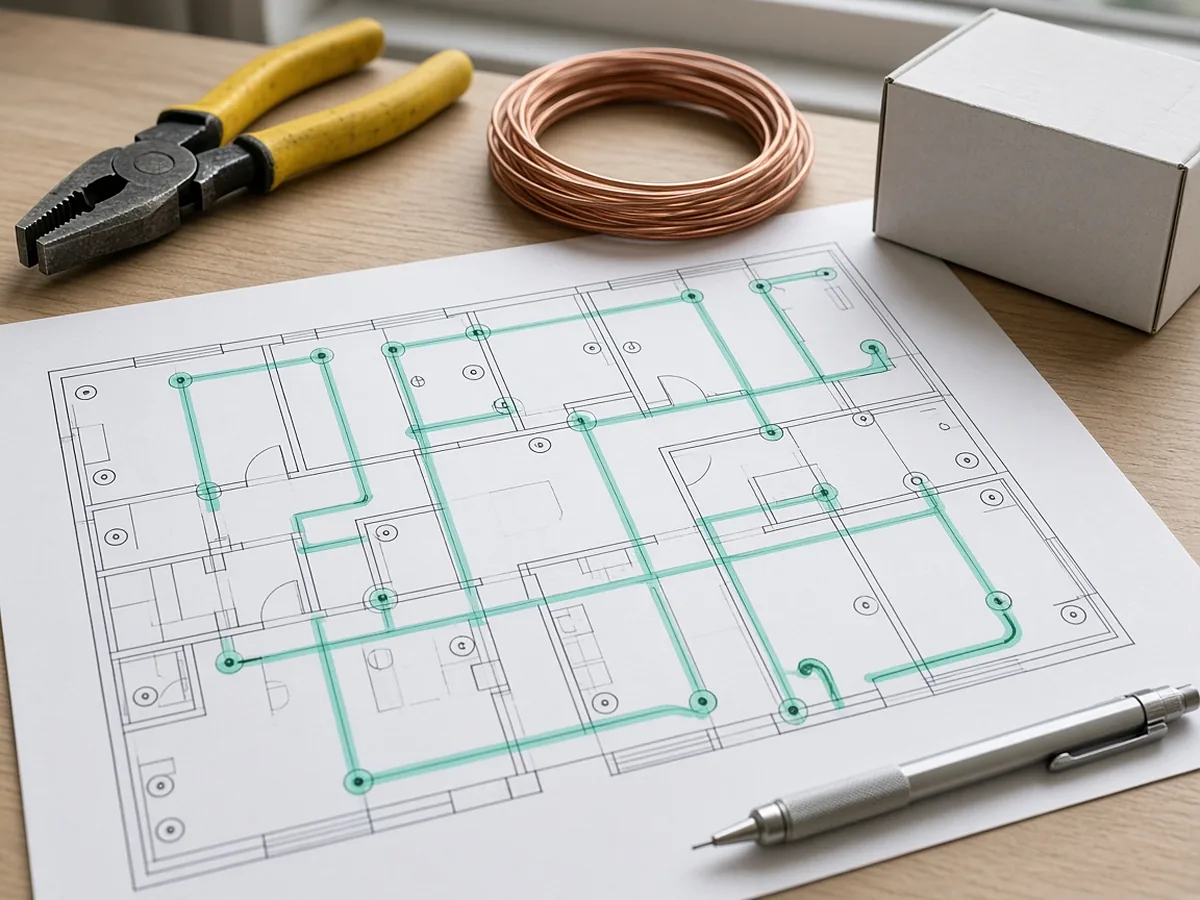
Electrical floor plan with highlighted device counts and circuit runs for an electrical bid
FAQ

Questions estimators ask

How much does PlanSwift cost in 2026?

PlanSwift lists Essential at $2,000 per year and Core at $3,000 per year for one seat, with a 14-day free trial. Check the pricing page for current terms.

Does PlanSwift count electrical symbols automatically?

PlanSwift lists Auto Count in both plans and Auto Takeoff in Core. Review the results for look-alike symbol variants and symbols in legends or details.

How should electrical takeoffs be organized in PlanSwift?

Folders by system and area, items named to the legend, feeders separate from branch, and assemblies built from your standards and the spec.

How is RenderDraw different?

RenderDraw proposes counts and runs linked to their sheets and sends uncertain items to estimator review. Get a free sample takeoff.

Start small

See what the AI reads on your own drawings.

Send one representative electrical plan set. RenderDraw reviews it and follows up with what the AI extracted and what it flagged for review. Your files remain private while the request is assessed, and there is no obligation.

  1. Upload power and lighting plans, the fixture schedule, panel schedules, the one-line and the Division 26 spec sections.
  2. RenderDraw reviews the set and the scope you want tested.
  3. We follow up with extracted quantities, flagged items and next steps.
Sources

Sources and further reading

Standards, manufacturer data and references used for this guide. Numbers marked as rules of thumb are starting points, not substitutes for your own cost history, the project specifications or the manufacturer's current data.

  1. PlanSwift pricing — Plans, prices, trial, AI tools by plan
  2. PlanSwift features — Export formats, Live Excel Link, AI tools
  3. PlanSwift electrical takeoff — Electrical counts and runs
  4. ConstructConnect PlanSwift — Vendor

Last reviewed November 2026.

Book a meeting with RenderDraw

Bring your drawings, estimating process, or product configuration questions. Choose a time to talk with our team.

Prefer a separate window? Open the booking page.

Free sample takeoffBook a demo