
Digital takeoff, minus most of the clicking.
Digital takeoff replaced scale rulers and highlighters with on-screen measuring. The next step changes who does the first pass: AI proposes the quantities, and your estimator reviews them instead of clicking every item.
- Paper → screen → review
- Calibration & evidence
- Review queue
- Free sample
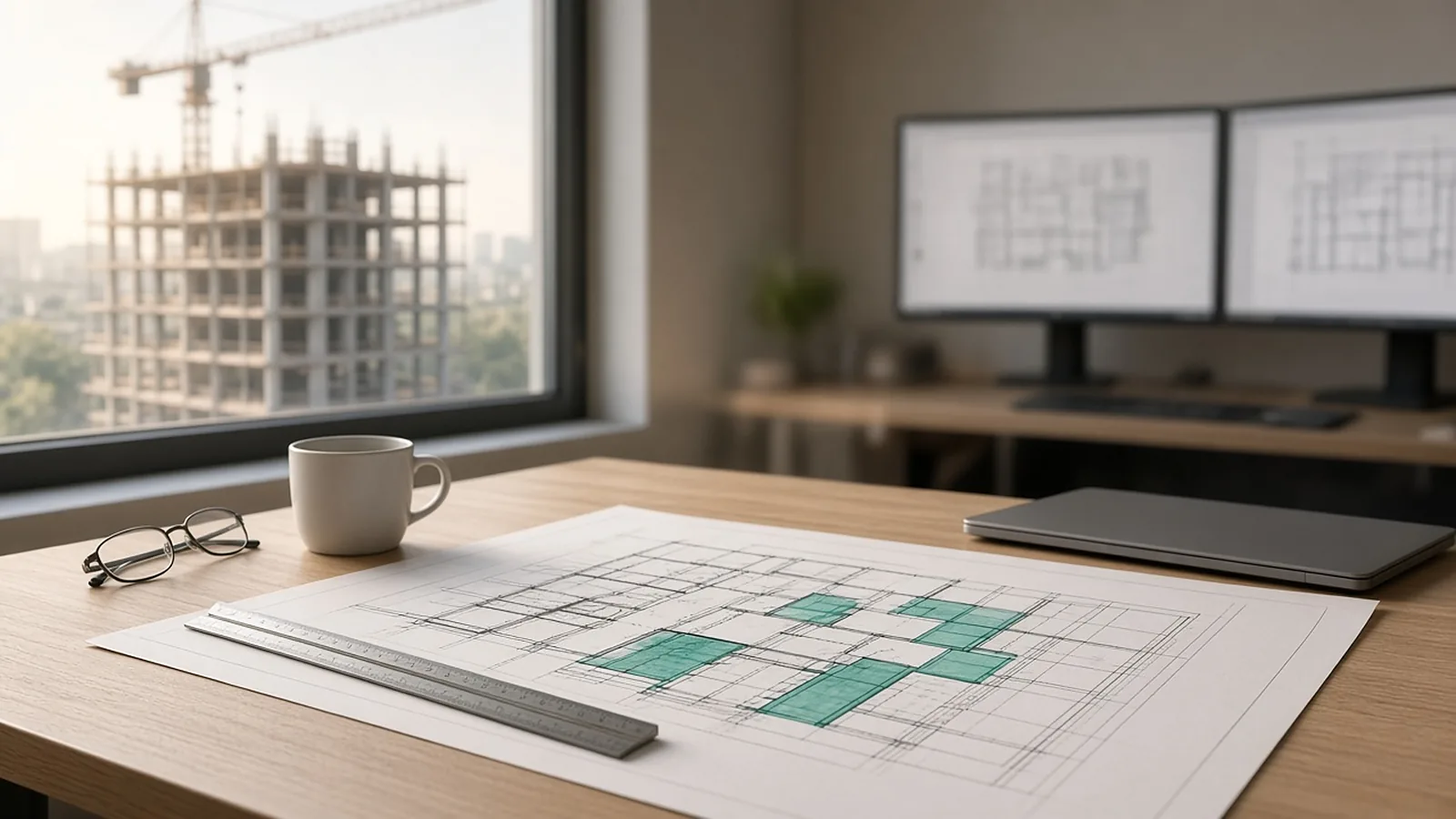
Three generations of takeoff.
| Paper | Digital (manual) | AI-assisted with review | |
|---|---|---|---|
| First pass | Scale ruler, highlighters | Click and trace on screen | AI proposes quantities |
| Estimator time goes to | Measuring | Measuring | Reviewing flagged items |
| Evidence | Marked-up prints | Markups in the file | Source tile, sheet and revision per row |
| Addenda | Start over on changed sheets | Re-measure changed sheets | Changed quantities return to review |
What RenderDraw is built around.
Source evidence
Every proposed quantity keeps the drawing tile and sheet it came from.
Review queue
Items are ordered by uncertainty, lowest confidence first, with confirm, edit and reject on each.
Source-linked review
Each item's source sheet is kept, so your estimator can check quantities against related sheets and schedules during review.
Revisions
Changed sheets go back through the same takeoff and estimator review.
Pricing handoff
Approved quantities hand off to your pricing and, for configured products, to RenderDraw's visual CPQ.
Learns your symbols
Reviewed corrections feed the knowledgebase, so non-standard client symbols improve after a reviewed takeoff or two.
What we checked (November 2026)
- Market reality (November 2026): most established digital takeoff tools now include some automated counting:
- PlanSwift: Auto Count, plus Auto Takeoff on Core.
- Trimble LiveCount: AI takeoff and Auto Count.
- Kreo: AI takeoff on Pro.
- Bluebeam Max: AI features.
- Scale is the most common silent error. Calibrate every sheet, and every viewport with a different scale, against a known dimension.
- Revision handling: check whether the tool overlays revisions and carries your existing takeoff onto the new sheet, or makes you redo it.
When digital takeoff doesn't help much: design-build work where you produce the layout yourself, very small service jobs, and sets that arrive only as hand sketches. In those cases, measuring from your own layout or in the field is often faster than calibrating a poor drawing. A tablet-based field measurement tool may help there.
Run one bid side by side.
Pick a real job
Choose a recent bid with the plan set, legend, schedules and at least one addendum.
Build a baseline
Have an estimator check the quantities you want to test.
Run it side by side
Run the same set through your current tool and through a RenderDraw sample.
Score misses and review time
Record missed items, wrong inclusions and the time spent correcting each result.
Your sample files remain private while we assess the request. There is no obligation to proceed.
Digital takeoff software, answered.
What is digital takeoff software?
Software for measuring quantities from digital drawings on screen: counts, lengths, areas and volumes.
What is the difference between digital and AI takeoff?
In digital takeoff the estimator measures each item on screen. In AI-assisted takeoff, the software proposes quantities and the estimator reviews them.
What files can I send?
A legible PDF drawing set is the most reliable starting point. Confirm any other file types in the free sample run.
Does the AI price the job by itself?
No. AI proposes quantities; your estimator reviews them, lowest confidence first, and only approved rows are priced with your assemblies, price lists and labor units.
Can I try it on my own drawings?
Yes. Request a free sample takeoff on one representative plan set. Your sample files remain private while we assess the request, and there is no obligation to proceed.
Send one plan set. Judge the result yourself.
A focused, no-obligation evaluation on your own drawings. Your sample files remain private while we assess the request.
- Upload one representative plan set (a legible PDF set is the most reliable starting point), plus an addendum if you have one.
- RenderDraw reviews the set and the scope you want tested.
- We follow up with what was extracted, what was flagged for review, and the most useful next step.
Related tools and guides
Sources and further reading
Vendor pages, standards and references checked for this page. Product features and prices change; confirm current details with each vendor.
- PlanSwift pricing — AI tools by plan
- Trimble Accubid Anywhere — LiveCount AI takeoff and Auto Count
- Kreo pricing — AI takeoff by plan
- Bluebeam: Plans and pricing — Features by plan
Last reviewed November 2026.